
Print Quality
Test Page
Print this comprehensive quality test page to evaluate your printer’s overall performance — from text sharpness and color accuracy to gradient smoothness, fine detail rendering, and solid fill coverage. Identify and fix any print quality issue in minutes.
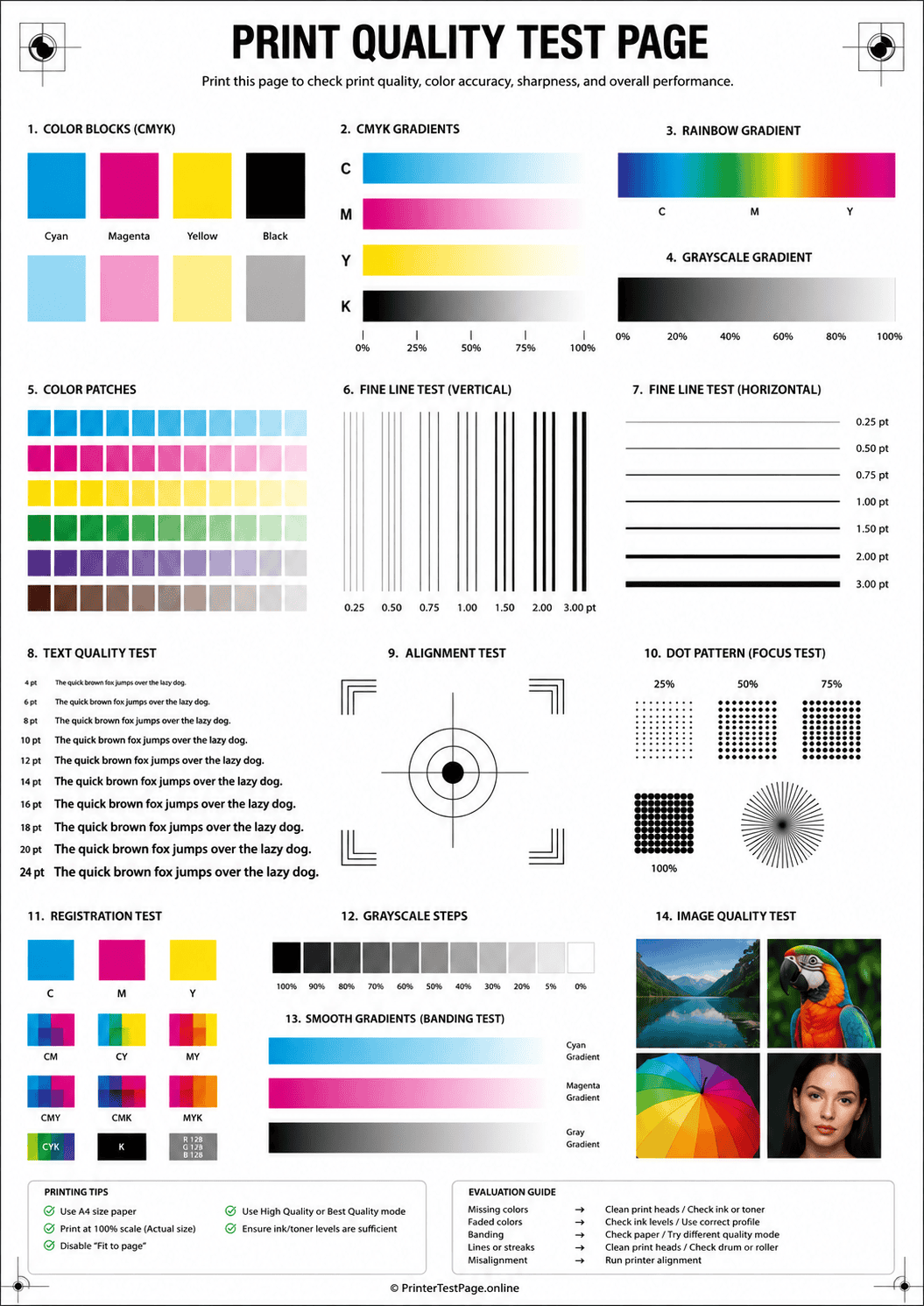
PRINT QUALITY TEST PAGE PREVIEW
Below is a preview of the print quality test page. Click print to get the best results.
WHAT DOES THIS TEST PAGE CHECK?
This print quality test page is a comprehensive diagnostic that evaluates every aspect of your printer’s output performance.
Text Sharpness
Test text rendering at multiple font sizes to check for blurriness, bleeding edges, broken characters, or fuzzy serifs.
Color Reproduction
Verify that primary and secondary colors print accurately without visible shifts, oversaturation, or dullness.
Gradient Smoothness
Evaluate tonal transitions from light to dark for visible banding, stepping, posterization, or sudden jumps.
Fine Detail Resolution
Check your printer’s ability to reproduce thin lines, tiny text, fine patterns, and intricate details without merging.
Solid Fill Coverage
Inspect large solid areas for even ink or toner coverage without pinholes, streaks, blotches, or light patches.
Overall Quality Score
Get a complete picture of your printer’s health by evaluating all test areas together for a full quality assessment.
HOW TO READ THE RESULTS
RELATED TEST PAGES
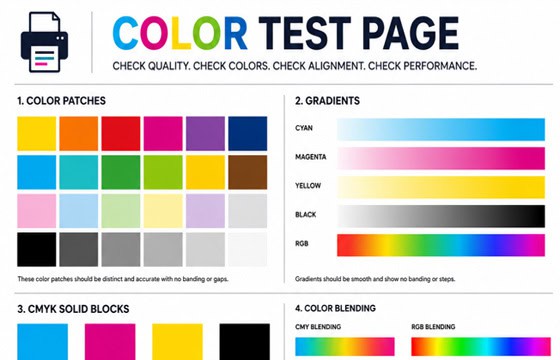
Color Test Page
Full color accuracy and quality check.
View Page →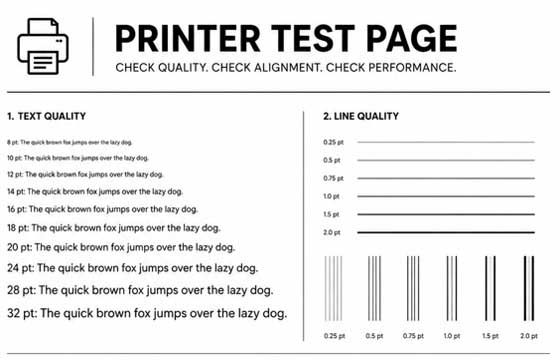
Black & White Test Page
Test black ink density and sharpness.
View Page →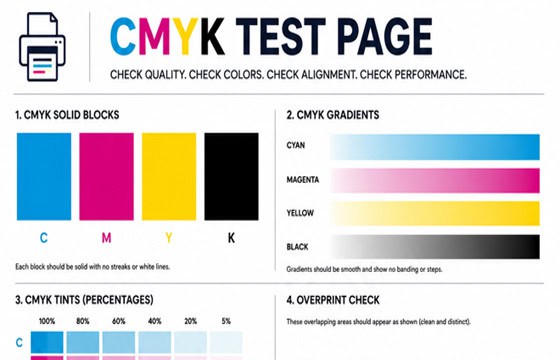
CMYK Test Page
Check individual CMYK channels.
View Page →
Alignment Test Page
Verify print alignment and margins.
View Page →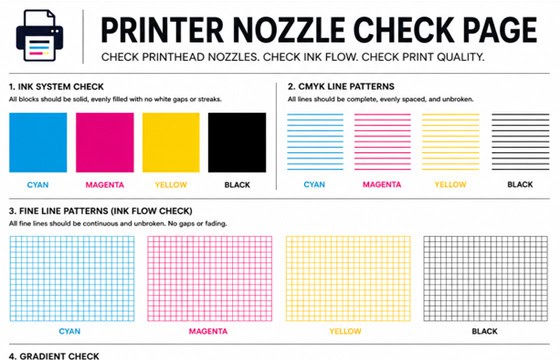
Nozzle Check Page
Detect clogged nozzles and gaps.
View Page →Frequently Asked Questions
A print quality test page is an all-in-one diagnostic print that evaluates every dimension of your printer’s output. It includes text samples at multiple sizes, color swatches, gradient ramps, fine-line resolution targets, and solid fill blocks. By examining each area of the printed page, you can quickly identify specific problems like blurry text, color inaccuracy, banding, ink bleeding, or uneven coverage — and take targeted action to fix them.
New ink alone does not guarantee good print quality. Common causes of poor quality with fresh cartridges include: air bubbles trapped in the ink delivery system (run 1–2 cleaning cycles to purge), protective tape or seals not fully removed from the cartridge, incorrect print quality settings in the driver (set to “Best”), wrong paper type selected in the driver, or a dirty printhead that needs cleaning. Also ensure you are using genuine or high-quality compatible cartridges — low-quality refills can cause poor output.
For laser printers, start by gently shaking the toner cartridge side to side to redistribute toner evenly. Set your print quality to “Fine” or “1200 DPI” in the driver. Make sure the correct paper type is selected — using “Plain Paper” for glossy stock will give poor results. If you see streaks or spots, the drum unit may need cleaning or replacement. Run the printer’s built-in calibration from the maintenance menu. For persistent ghosting, check if the fuser unit needs servicing.
Yes, this print quality test page is designed to work with all printer types — inkjet, laser, LED, and multifunction printers. The test patterns are universally applicable: text sharpness, color accuracy, gradient smoothness, detail resolution, and solid coverage are critical quality metrics for any printing technology. The results table above provides specific fixes for both inkjet and laser printers, so you can diagnose and resolve issues regardless of which type you own.