
Printer Photo
Test Page
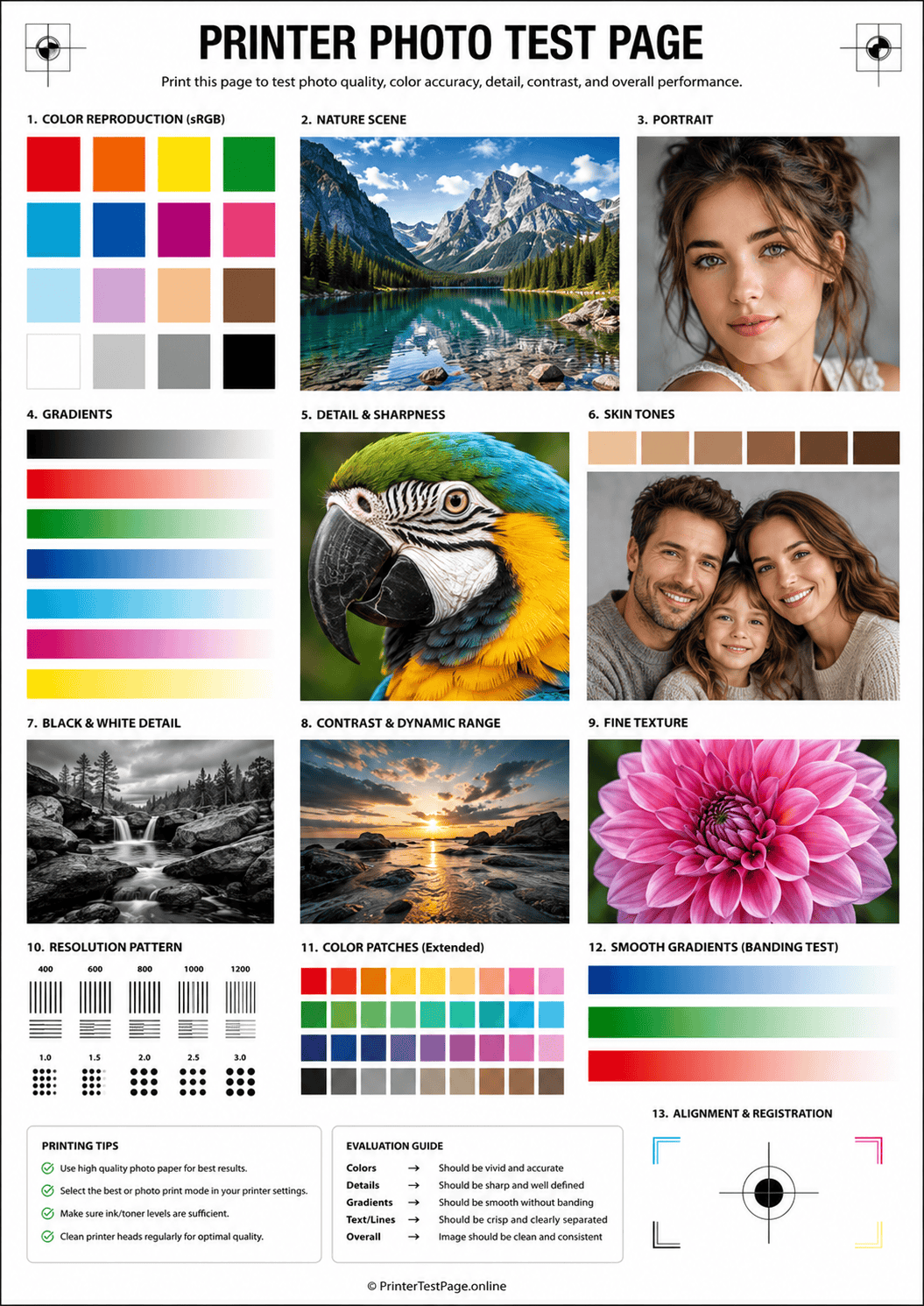
Print this photo test page to evaluate your printer’s photographic output quality — including skin tone accuracy, shadow detail, highlight clarity, color depth, and smooth tonal transitions. Perfect for photographers, designers, and anyone who needs true-to-life photo prints.
PHOTO TEST PAGE PREVIEW
Below is a preview of the photo test page. Click print to get the best results.
WHAT DOES THIS TEST PAGE CHECK?
This photo test page evaluates every critical factor that determines photographic print quality from your printer.
Skin Tone Accuracy
Check that human skin tones across different complexions print naturally without unnatural casts, redness, or greenish tints.
Shadow Detail
Verify that dark areas of photos retain visible detail and texture instead of becoming flat, muddy, or completely black.
Highlight Clarity
Ensure bright areas like clouds, white clothing, and reflections show subtle detail rather than blowing out to pure white.
Color Depth & Saturation
Test that rich, saturated colors like deep reds, vivid greens, and bright blues print with full vibrancy without clipping.
Tonal Transitions
Evaluate smooth gradations between tones to detect banding, posterization, or abrupt color jumps in photographic content.
Image Sharpness
Assess fine photographic detail — hair strands, fabric textures, and foliage — to confirm crisp rendering without softness.
HOW TO READ THE RESULTS
RELATED TEST PAGES
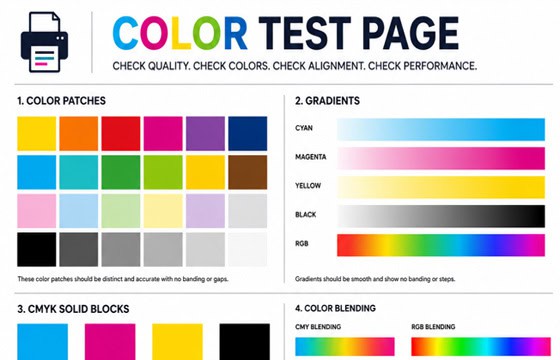
Color Test Page
Full color accuracy and quality check.
View Page →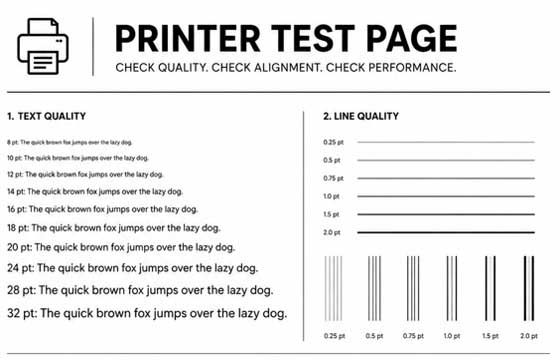
Black & White Test Page
Test black ink density and sharpness.
View Page →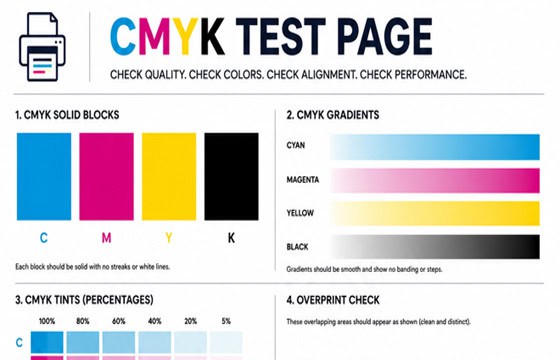
CMYK Test Page
Check individual CMYK channels.
View Page →
Alignment Test Page
Verify print alignment and margins.
View Page →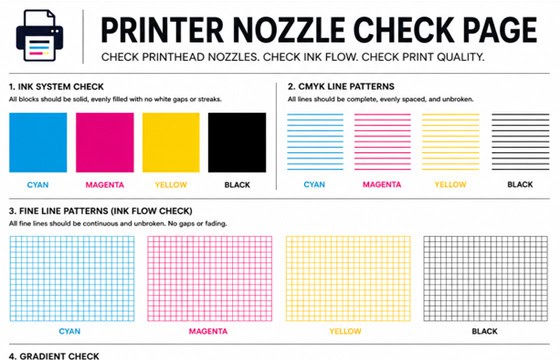
Nozzle Check Page
Detect clogged nozzles and gaps.
View Page →Frequently Asked Questions
A photo test page is a diagnostic print specifically designed to evaluate your printer’s ability to reproduce photographic content. Unlike standard test pages that focus on text and basic colors, a photo test page checks skin tone accuracy, shadow detail preservation, highlight clarity, color depth and saturation, tonal transitions, and fine image sharpness. It is essential for photographers, graphic designers, and anyone who prints photos at home to ensure true-to-life color reproduction.
For the most accurate results, use the same photo paper you normally print your photos on — whether that is glossy, semi-glossy, matte, or luster finish. This ensures the test reflects real-world output. If you are just doing a quick check, you can print on plain paper, but colors will appear less vibrant and details less sharp because plain paper absorbs ink differently. Always select the matching paper type in your printer driver settings for correct ink volume.
Monitors use RGB light to display colors while printers use CMYK ink — these are fundamentally different color systems with different gamuts. Additionally, an uncalibrated monitor may show colors inaccurately. To minimize the difference: calibrate your monitor with a hardware colorimeter, use the correct ICC printer profile for your paper, let the printer driver manage colors (or use application-level color management in Photoshop/Lightroom), and evaluate prints under neutral daylight rather than warm indoor lighting.
You can print this test page on a color laser printer, but be aware that laser printers are generally not optimized for photographic output. Laser printers use toner powder fused with heat, which produces sharper text and graphics but typically yields less color depth, fewer tonal gradations, and less smooth gradients compared to inkjet photo printers. For serious photo printing, a 6-ink or 8-ink inkjet printer with dedicated photo inks will deliver significantly better photographic results.