
HP Printers
HP Printer
Test Page
Print this HP-optimized test page to diagnose print quality issues on any HP inkjet, laser, or multifunction printer. Check color accuracy, text sharpness, alignment, nozzle health, and toner coverage — tailored specifically for HP DeskJet, OfficeJet, ENVY, LaserJet, and PageWide printers.
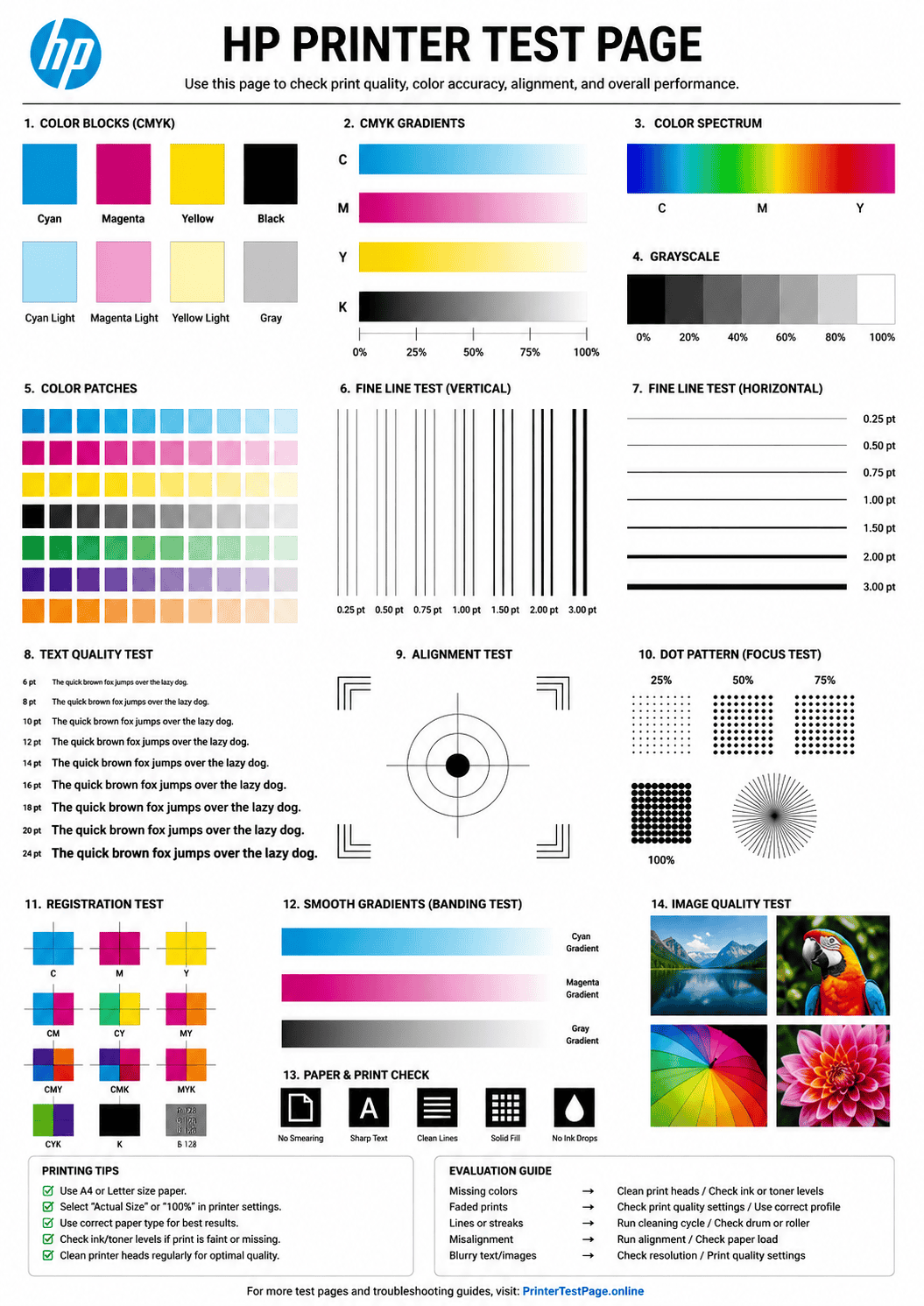
HP TEST PAGE PREVIEW
Below is a preview of the HP printer test page. Click print to get the best results.
WHAT DOES THIS HP TEST PAGE CHECK?
This HP-specific test page evaluates every critical aspect of your HP printer’s output quality and hardware health.
HP Color Accuracy
Verify that all HP ink or toner colors print accurately without shifts, casts, or incorrect hue reproduction.
Text & Font Clarity
Test text rendering at multiple sizes to detect blurry characters, bleeding edges, or broken fonts on HP printers.
Printhead Alignment
Check if the HP printhead is properly aligned — detect skewed output, uneven margins, or shifted content.
Nozzle & Ink Flow
Detect clogged nozzles, missing lines, and ink flow problems specific to HP DeskJet, ENVY, and OfficeJet models.
Toner & Ink Density
Inspect solid fill areas for even coverage — spot pinholes, streaks, or light patches in HP LaserJet toner output.
Gradient & Banding
Evaluate smooth tonal transitions to detect visible banding, posterization, or stepping in HP print output.
HOW TO READ THE RESULTS
HP PRINTER SERIES TROUBLESHOOTING
HP DeskJet & ENVY
Entry-level inkjet. Common issues: clogged nozzles from infrequent use, ink smearing on glossy paper, slow print speed in Best mode. Clean printhead regularly.
HP OfficeJet Pro
Business inkjet. Common issues: printhead alignment after cartridge swap, paper jam in ADF, duplex registration offset. Use HP Smart diagnostics tool.
HP LaserJet & LaserJet Pro
Mono and color laser. Common issues: toner streaks, ghosting, fuser marks, drum wear. Shake toner cartridge and run cleaning page from maintenance menu.
RELATED TEST PAGES
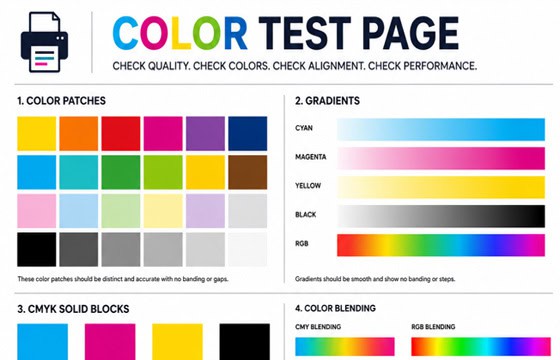
Color Test Page
Full color accuracy and quality check.
View Page →
Black & White Test Page
Test black ink density and sharpness.
View Page →
Alignment Test Page
Verify print alignment and margins.
View Page →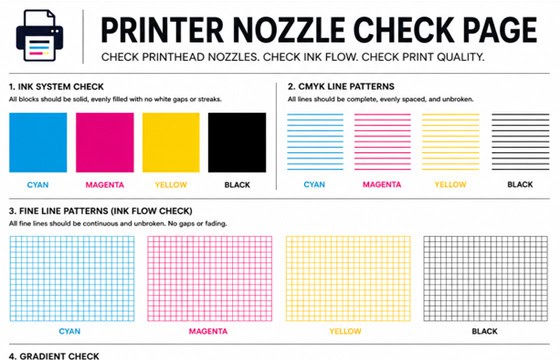
Nozzle Check Page
Detect clogged nozzles and gaps.
View Page →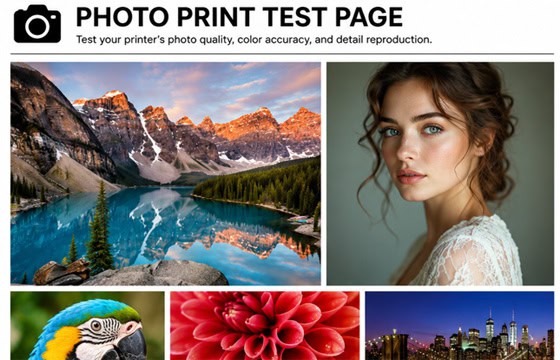
Photo Print Test Page
Test photo quality and color depth.
View Page →Frequently Asked Questions
You can print a test page directly from this website by clicking the “Print Test Page” button above. Alternatively, you can print HP’s built-in test page from the printer itself: on most HP models, go to Setup > Reports > Print Quality Report, or press and hold the Cancel button for 5 seconds. On HP printers with a touchscreen, navigate to Setup > Tools > Print Quality Report.
Blank or faded pages on HP printers are usually caused by: empty or very low ink/toner cartridges, protective tape not removed from a new cartridge, clogged printhead nozzles (for inkjet models), or a cartridge that is not properly seated. Check ink levels in the HP Smart app, remove and reseat all cartridges, and run the printhead cleaning utility from Setup > Tools > Clean Printhead. For HP LaserJet, gently shake the toner cartridge to redistribute toner.
On HP printers with a control panel: go to Setup > Tools > Clean Printhead, and follow the on-screen instructions. On HP printers without a screen: open the HP Smart app on your computer or phone, select your printer, go to Print Quality Tools > Clean Printhead. Run the cleaning cycle up to 3 times, waiting 5 minutes between each cycle. If the issue persists after 3 cycles, the printhead may need to be replaced — on models with integrated printheads (like HP 61, 63, 65 cartridges), replacing the cartridge also replaces the printhead.
Yes, this test page works perfectly with HP Instant Ink cartridges. Printing this test page counts toward your monthly page allowance on the HP Instant Ink plan, just like any other page. The diagnostic results are identical regardless of whether you use HP Instant Ink, standard HP cartridges, or HP+ cartridges. If you are on a limited page plan, consider downloading the PDF and reviewing the preview on screen before printing to conserve your page count.