
Epson Printers
Epson Printer
Test Page
Print this Epson-optimized test page to diagnose print quality issues on any Epson inkjet or laser printer. Check color accuracy, text clarity, printhead alignment, nozzle health, and ink coverage — tailored specifically for Epson EcoTank, WorkForce, Expression, and SureColor printers.
EPSON TEST PAGE PREVIEW
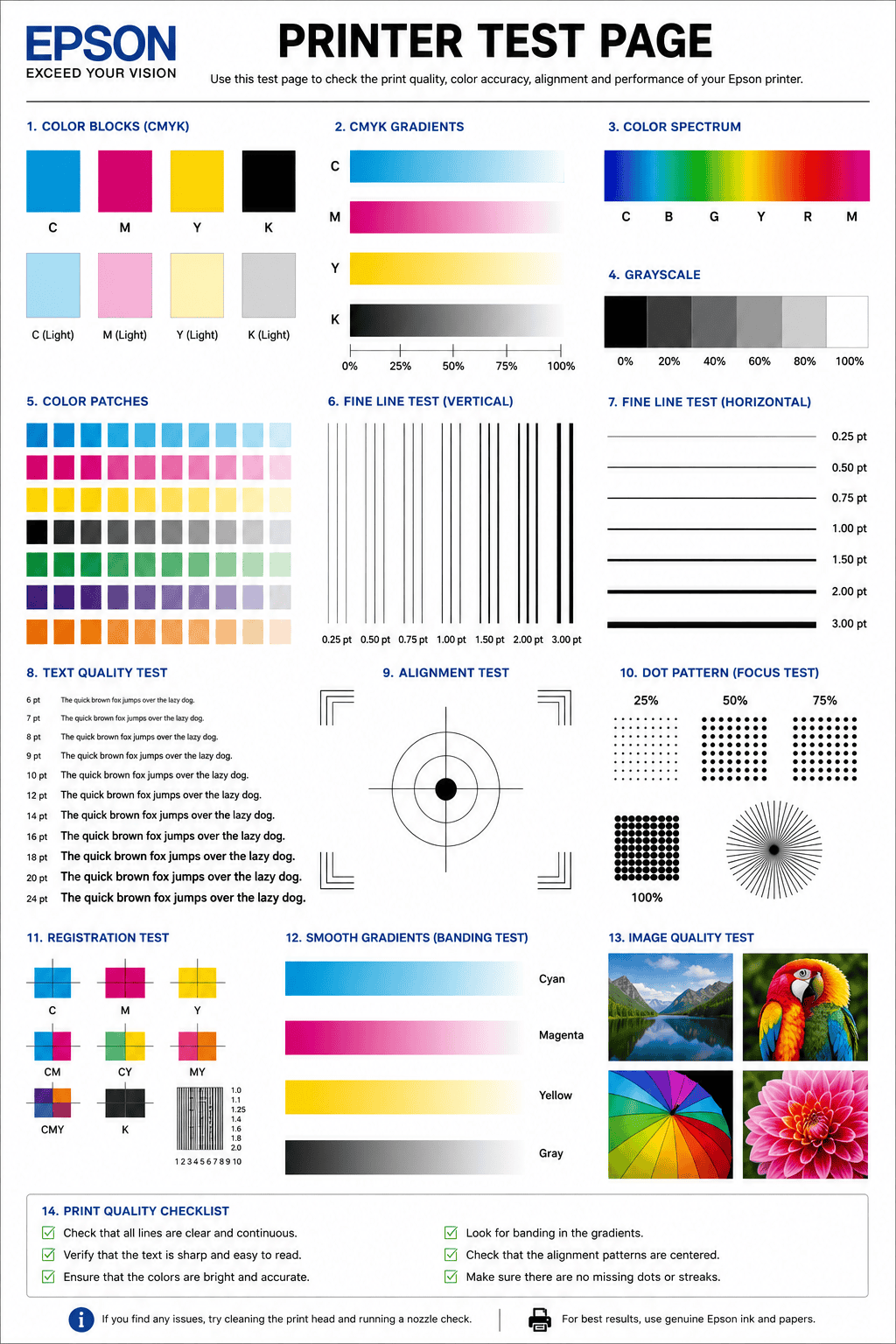
Below is a preview of the Epson printer test page. Click print to get the best results.
WHAT DOES THIS EPSON TEST PAGE CHECK?
This Epson-specific test page evaluates every critical aspect of your Epson printer’s output quality and hardware health.
Epson Color Accuracy
Verify that all Epson ink colors — including Claria and DURABrite Ultra inks — print accurately without color shifts or casts.
Text & Font Clarity
Test text rendering at multiple sizes to detect blurry characters, ink bleeding, or broken fonts on Epson Micro Piezo heads.
Print Head Alignment
Check if the Epson Micro Piezo or PrecisionCore printhead is properly aligned for sharp, precise output.
Nozzle & Ink Flow
Detect clogged nozzles, missing lines, and ink flow problems specific to Epson EcoTank and cartridge-based models.
Ink & Toner Density
Inspect solid fills for even coverage — spot pinholes, streaks, or light patches in Epson WorkForce Enterprise laser output.
Gradient & Banding
Evaluate smooth tonal transitions to detect visible banding or posterization in Epson print output.
HOW TO READ THE RESULTS
EPSON PRINTER SERIES TROUBLESHOOTING
Epson EcoTank & Expression
Home inkjet printers with refillable tanks or cartridges. Common issues: clogged nozzles from infrequent use, air bubbles after refilling EcoTank, ink not flowing after initial setup. Run Nozzle Check and Power Cleaning from the Maintenance menu.
Epson WorkForce & WorkForce Pro
Business inkjet printers with PrecisionCore heads. Common issues: print head alignment after cartridge swap, paper jam in ADF, duplex registration offset. Use Epson Smart Panel app for remote diagnostics and maintenance.
Epson SureColor & Stylus Photo
Professional photo and wide-format printers. Common issues: color profile mismatch, banding in gradient areas, UltraChrome ink settling after idle periods. Run Nozzle Check before every critical print job and allow 24-hour ink dry time.
RELATED TEST PAGES
Color Test Page
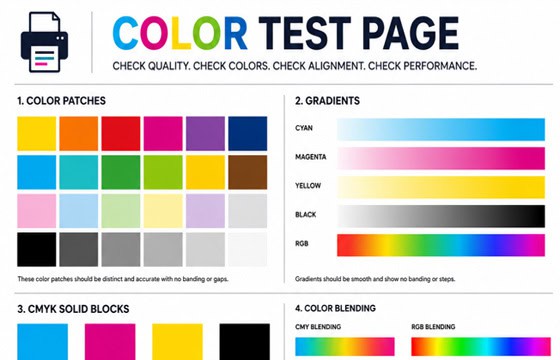
Full color accuracy and quality check.
View Page →
Black & White Test Page
Test black ink density and sharpness.
View Page →
Alignment Test Page
Verify print alignment and margins.
View Page →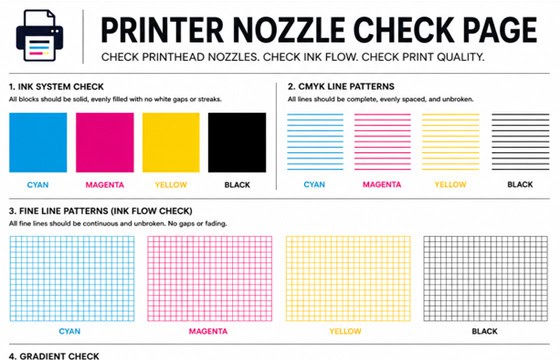
Nozzle Check Page
Detect clogged nozzles and gaps.
View Page →
Photo Print Test Page
Test photo quality and color depth.
View Page →Frequently Asked Questions
You can print a test page directly from this website by clicking the “Print Test Page” button above. Alternatively, print Epson’s built-in nozzle check pattern from the printer itself: on models with an LCD screen, go to Settings > Maintenance > Nozzle Check and press Start. On models without a screen (like some Expression models), hold the Stop button for 3 seconds. You can also use the Epson Smart Panel app on your phone to run diagnostics and initiate cleaning cycles remotely.
Blank or faded pages on Epson printers are usually caused by: empty or very low ink levels, clogged print head nozzles from infrequent use, protective tape not fully removed from a new cartridge, or air trapped in the EcoTank ink system after refilling. Check ink levels on the LCD screen or Epson Smart Panel app, remove and reseat all cartridges, and run Settings > Maintenance > Head Cleaning. For EcoTank models, ensure ink bottles were properly inserted and the tanks are filled to the upper line. If cleaning does not help, run Power Cleaning (uses more ink but clears stubborn clogs).
Power Cleaning (also called Power Ink Flushing on some models) is Epson’s most aggressive print head cleaning cycle. It pushes a large volume of ink through the Micro Piezo nozzles to clear severe blockages. Use it only after 2–3 standard Head Cleaning cycles have failed to fix missing lines or gaps in your nozzle check pattern. Go to Settings > Maintenance > Power Cleaning. Important: Power Cleaning consumes significant ink — ensure all tanks or cartridges are at least one-third full before running it. Wait at least 6 hours before running another Power Cleaning cycle to protect the print head.
While third-party ink cartridges or refill bottles may work in Epson printers, they can cause issues including: inaccurate color reproduction, increased nozzle clogging due to different ink viscosity, “cartridge not recognized” errors from firmware updates, and potentially voiding your warranty. Epson’s genuine inks — Claria, DURABrite Ultra, and UltraChrome — are specifically formulated for their Micro Piezo print heads. Some newer Epson models have firmware that blocks non-genuine cartridges entirely. If you choose third-party ink, run nozzle checks more frequently. This test page will help you evaluate output quality regardless of ink brand.