
Printer Alignment
Test Page
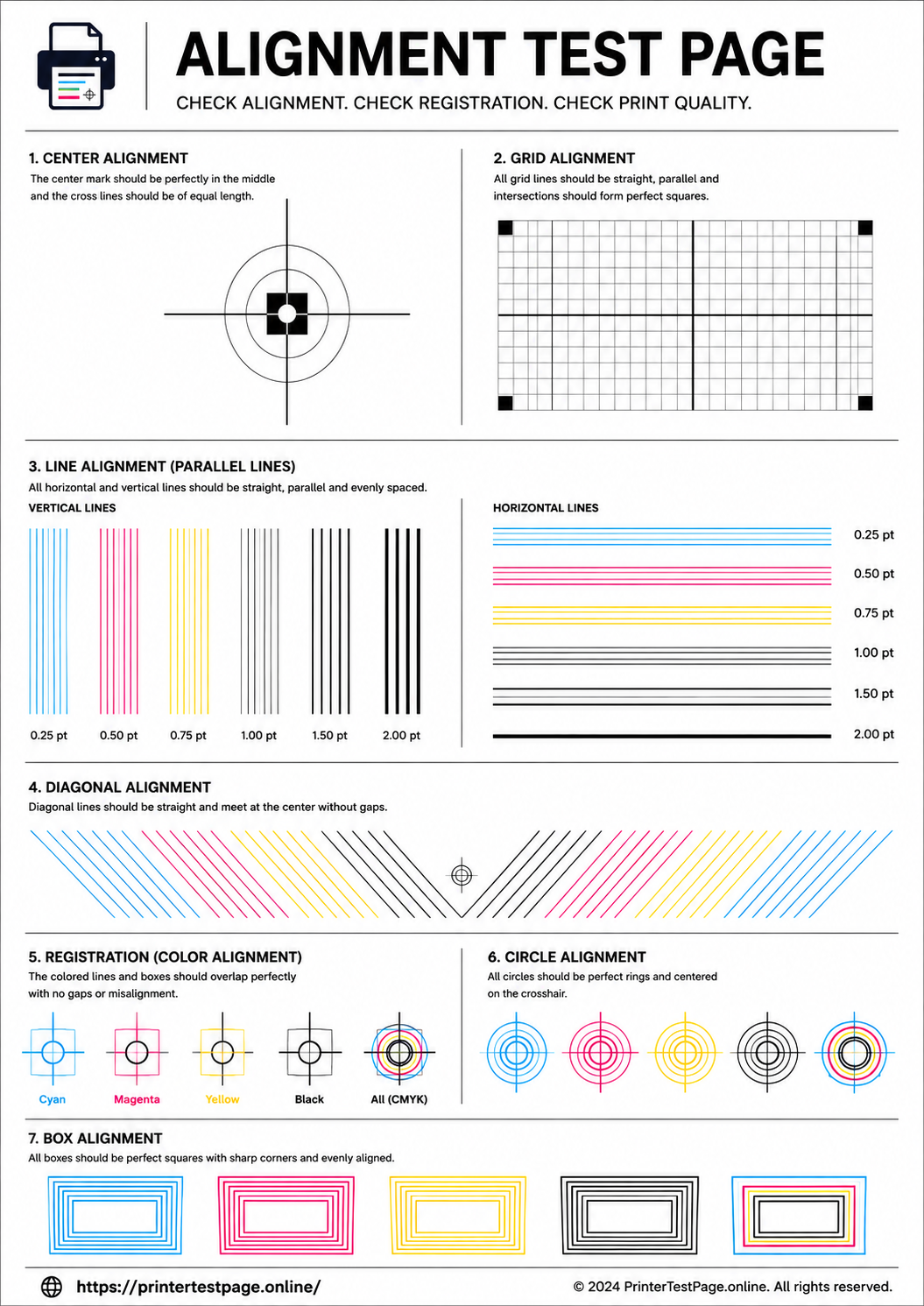
Print this alignment test page to check horizontal and vertical alignment, printhead positioning, margin accuracy, and overall print precision. Fix skewed prints, uneven margins, and misaligned text or images instantly.
ALIGNMENT TEST PAGE PREVIEW
Below is a preview of the alignment test page. Click print to get the best results.
WHAT DOES THIS TEST PAGE CHECK?
This alignment test page checks every aspect of your printer’s physical positioning accuracy.
Horizontal Alignment
Verify horizontal lines print straight without tilting, curving, or wavering.
Vertical Alignment
Confirm vertical lines are perfectly straight and evenly spaced top to bottom.
Margin Accuracy
Check that top, bottom, left and right margins are equal and within expected range.
Printhead Positioning
Detect if the printhead is placing ink in the correct physical position on the page.
Duplex Registration
Ensure front and back pages line up correctly during double-sided printing.
Grid Precision
Test grid patterns to verify spacing accuracy and detect any stretching or compression.
HOW TO READ THE RESULTS
RELATED TEST PAGES
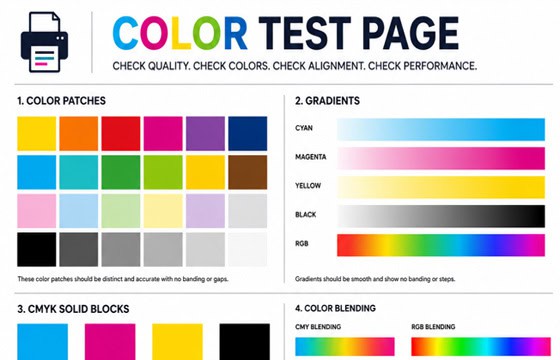
Color Test Page
Full color accuracy and quality check.
View Page →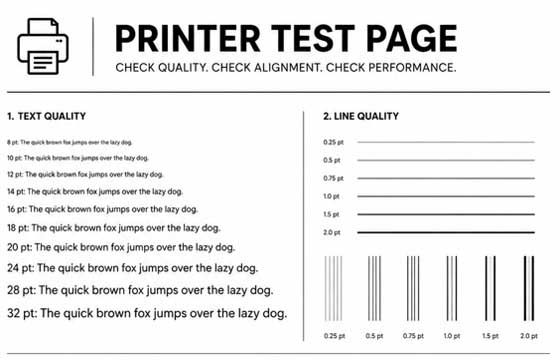
Black & White Test Page
Test black ink density and sharpness.
View Page →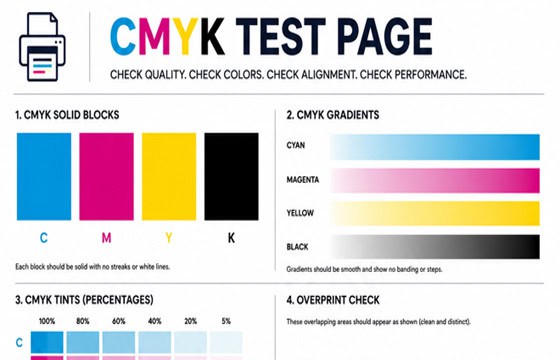
CMYK Test Page
Check individual CMYK channels.
View Page →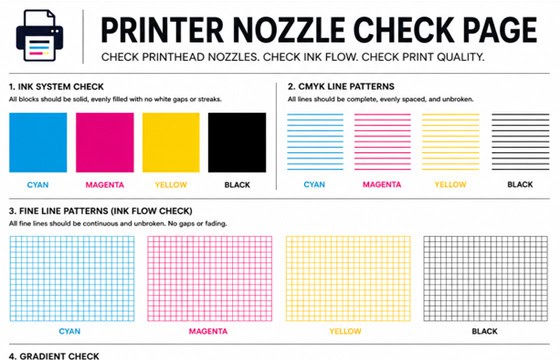
Nozzle Check Page
Detect clogged nozzles and gaps.
View Page →
Photo Print Test Page
Test photo quality and color depth.
View Page →Frequently Asked Questions
A printer alignment test page is a diagnostic page with precisely positioned lines, grids, crosshairs, and border markers designed to test whether your printer places ink exactly where it should on the page. It reveals problems like skewed output, uneven margins, shifted text, and duplex registration errors that are hard to notice on normal documents but affect professional print quality.
Crooked or skewed prints are almost always caused by paper loading issues. The paper may not be sitting flush in the tray, the paper guides may be too loose, or the paper stack may be uneven. Remove all paper, tap the stack on a flat surface to align the edges, reload it, and push the paper guides snugly against both sides. Also check for debris inside the paper tray that could push the paper off-center.
Most printers have an automatic alignment utility. On HP printers, go to Setup > Tools > Align Printer. On Canon printers, go to Maintenance > Print Head Alignment. On Epson printers, use the Epson printer utility and select Head Alignment. On Brother printers, check Settings > Maintenance. The printer will print an alignment sheet and either scan it automatically or ask you to select the best-aligned patterns.
Yes, it is strongly recommended to run printhead alignment every time you install a new ink or toner cartridge. Even small differences between cartridges can shift the printhead calibration slightly, leading to misaligned text, color fringing, or blurry output. Most printers prompt you to align after a cartridge change, but if yours does not, run it manually from the printer maintenance menu.